This guide will provide details on setting up vREST Enterprise licence in your enterprise instance.
Upon successful installation of vREST Enterprise server, when you access the vREST Enterprise server for the first time, it will provide you the system code for your instance. Use this system code to generate your licence key from vREST Cloud (https://vrest.io).
- Open vREST Enterprise server via public facing URL. This will open up the screen as shown below:
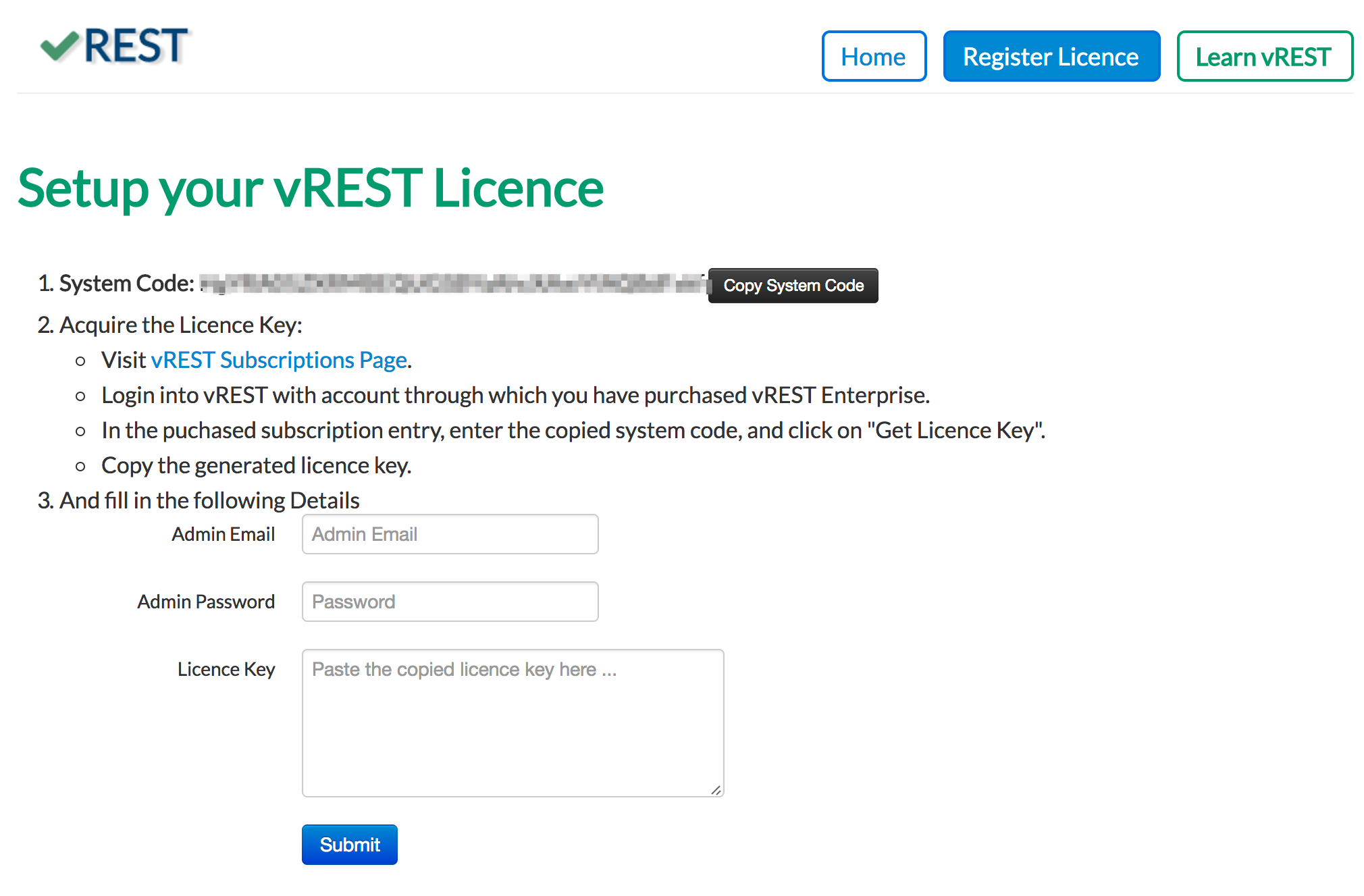
- Copy System code provided as shown in above screenshot.
- Now generate a licence key by either purchasing a new enterprise subscription or creating a trial enterprise subscription.
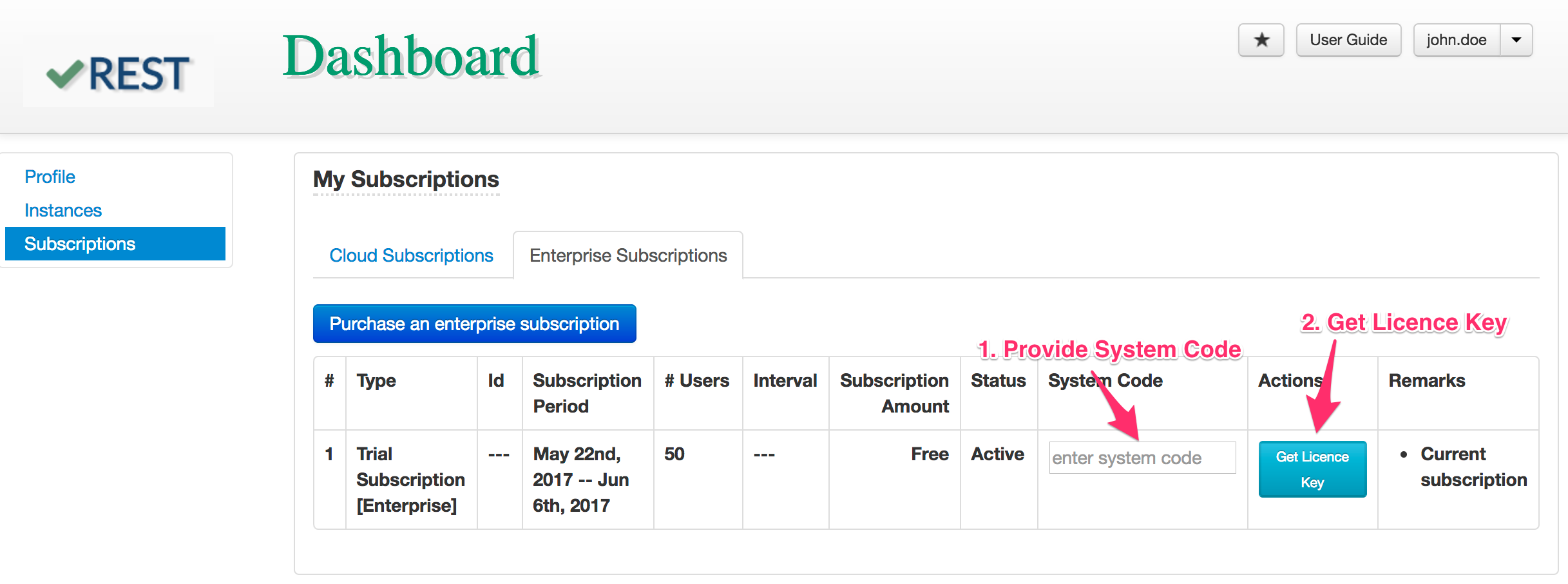
- In the enterprise subscription entry, provide the copied system code and click on "Get Licence Key" button to generate the licence key as shown in below screenshot.
- Now, provide the admin email, password and paste the copied licence key in your vREST Enterprise licence setup page.
- Now, click on submit button to proceed.
- That's it. Your enterprise instance is ready.