The vendor sends back a new version of the contract. Payment terms are agreed, the liability clause is still open, and the service levels were reworded again. Two weeks later, someone asks a simple question: what have we actually agreed?
Nobody can say for sure. The answer is spread across email threads, a file called "contract_final_v7", and a few people's memory.
Why contracts get out of hand
A contract is rarely one decision. It is a stack of smaller ones, and each one moves at its own speed. That is where things go wrong:
- A clause everyone thought was settled gets reopened, because nobody recorded that it was agreed.
- Something still open slips through to signing, because it was buried in a long email thread.
- Nobody owns the status of the whole contract, so every update starts with "let me check".
Tracking the contract as one item hides all of this. Tracking every clause in a spreadsheet separates it from the rest of your work.
The quick answer: make the contract a Jira work item, each clause that matters a requirement, and each round of discussion a negotiation. Every part then has its own status, so what is agreed and what is open is always visible.
How PACT does it
PACT, Optimizory's contract management app for Jira Cloud and DC, is built around exactly this structure. A Contract work item has Requirements, and each requirement has Negotiations. They are connected with Jira link types, and your contract data stays in your Jira Cloud site.
Step 1: A one-time setup
Open Pact Home and click Configuration. Tell PACT which work item type is a contract, which is a requirement, and which link types connect them. That is all PACT needs to get started.
Step 2: Create the contract and its requirements
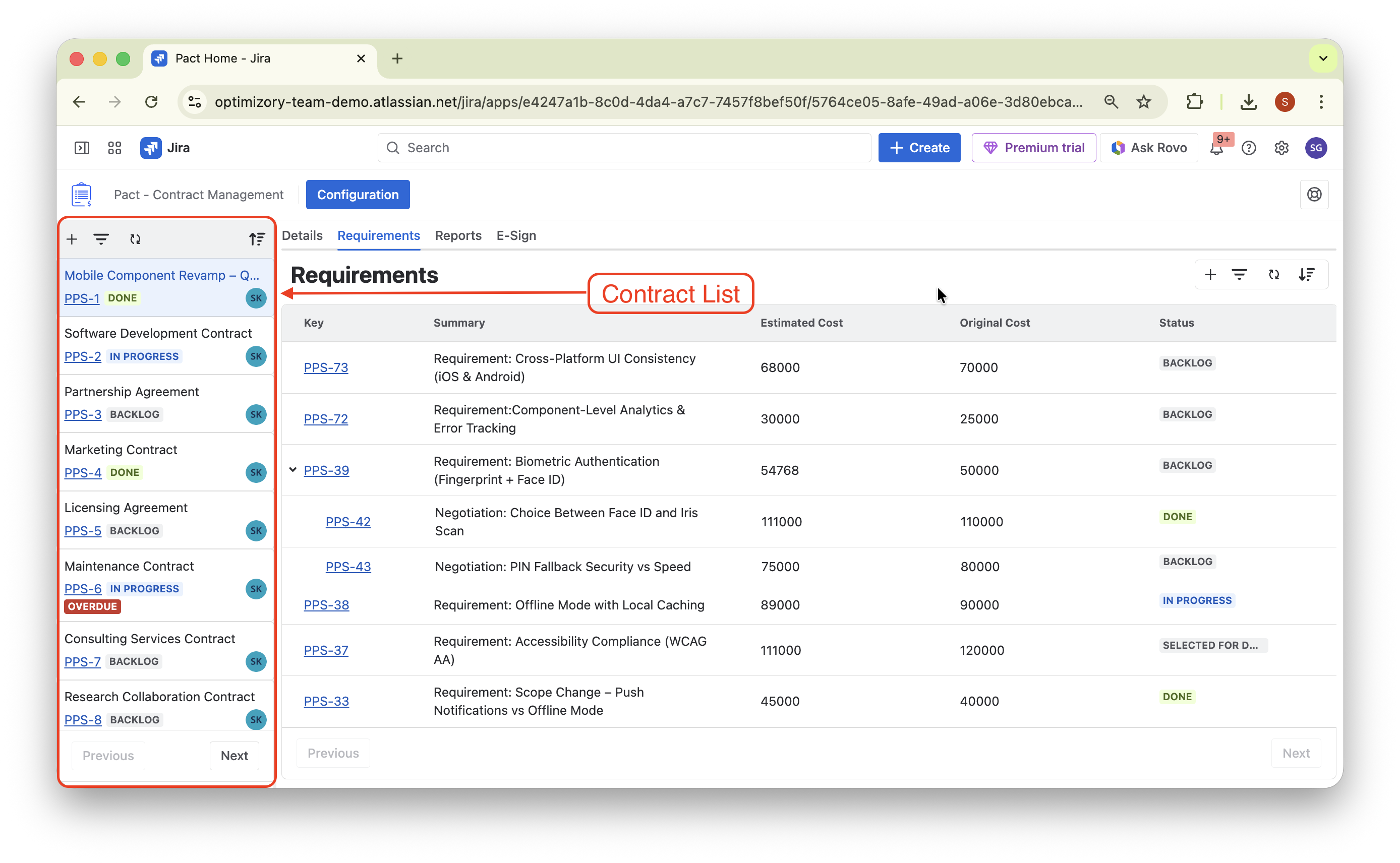
In the Contract List, click the plus icon to create a contract, then open it. In the Requirements Table, use the plus icon to add each clause that matters, for example "Mobile Component Revamp", "Software Development Contract" and "Partnership Agreement".
Step 3: Track each negotiation
When a clause is under discussion, hover over its row in the Requirements Table and click the plus icon next to the key. This creates a negotiation for that requirement. A clause that goes through three rounds has three records instead of three email threads.
See what is still open
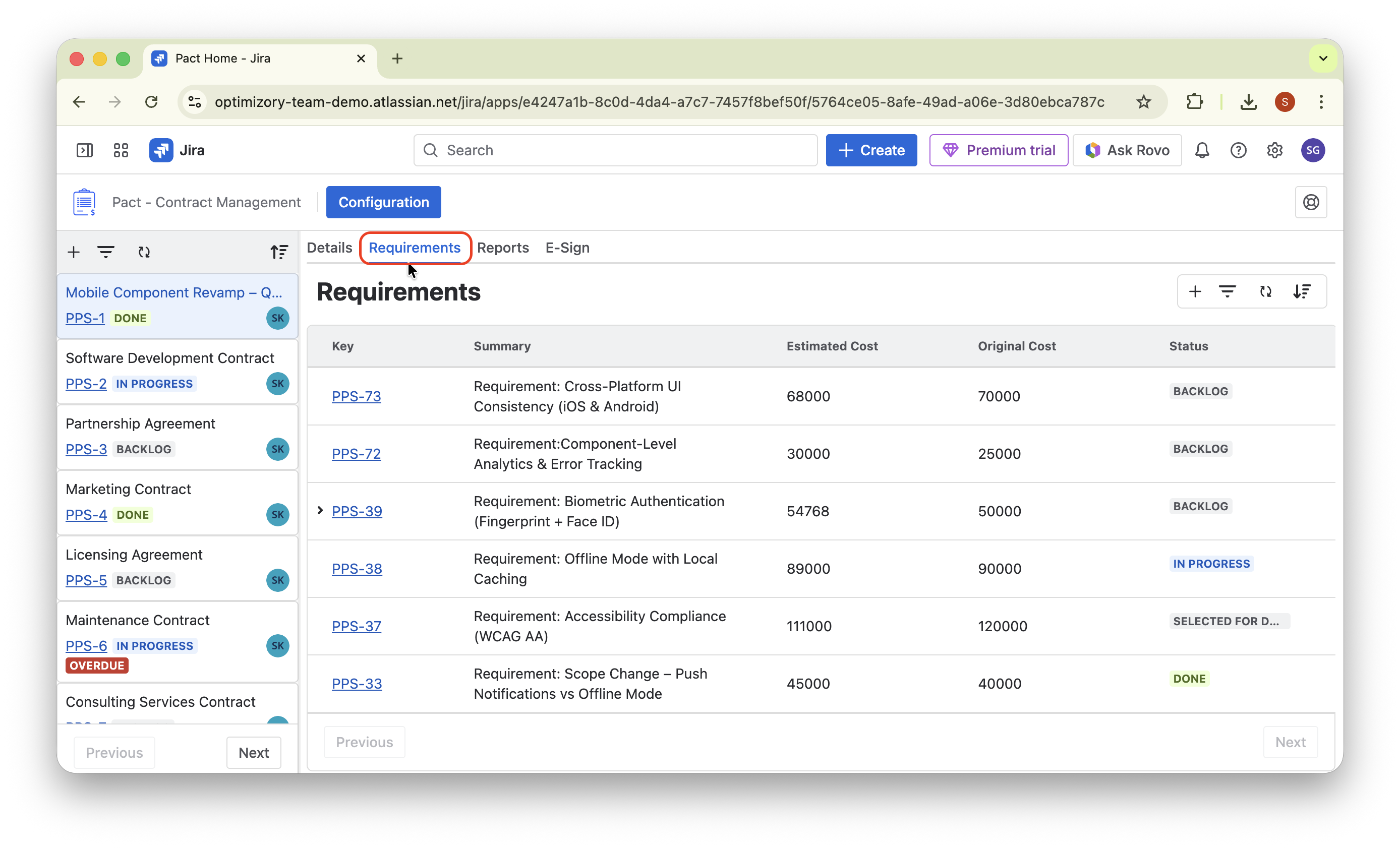
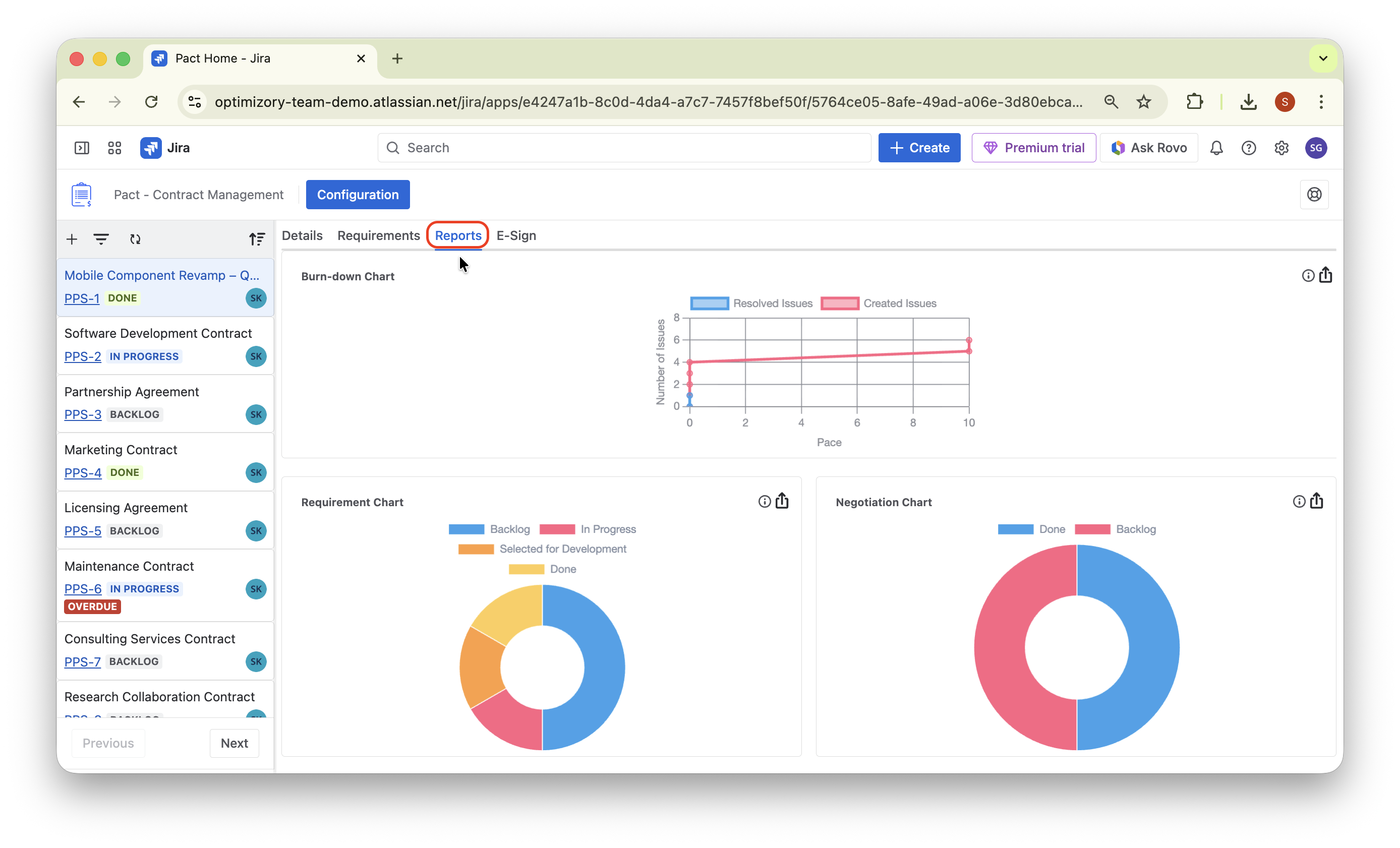
The Requirements Table lists every requirement with its key, summary, costs and status. Filter by status to see only what is still open. The Reports tab adds a Requirement Status chart and a Negotiation Status chart that you can export as PNG.
Now "what have we agreed?" is one filter away.
What you get
- One place for every clause and every round of negotiation
- A clear status for each requirement, in the Jira your team already uses
- No more hunting through email to find out what changed
Try PACT free on the Atlassian Marketplace, or book a demo with the Optimizory team.