Imagine you're preparing for a design review. Your Jira project already contains system requirements, software requirements, software items, tests, and risk controls. The relationships are there too, we've been building them across this entire series in the IDA project.
Now someone asks for the complete Requirements Traceability Matrix.
You can export Jira data and build it manually, or you can generate the traceability view from the relationships already stored in Jira. This is where Links Explorer becomes the practical end point of the workflow we've built throughout this series.
The example
| Artifact |
Example volume |
| System requirements | 45 |
| Software requirements | 180 |
| Test cases | 320 |
| Risk controls | 12 |
This table describes a typical mid-size Class B project, used here to show how the manual-vs-generated tradeoff changes with scale. The IDA project we've used throughout this series is much smaller, nine work items total, but the same tradeoff applies regardless of size. It only gets more pronounced as a real project grows toward numbers like these.
Option 1: Build the RTM manually
              Export Jira
                |
                v
              Cross-reference issue links
                |
                v
              Build spreadsheet rows
                |
                v
              Find missing relationships
                |
                v
              Review
                |
                v
              Repeat
This can work for small datasets. As the number of work items and relationships grows, manual cross-reference becomes increasingly difficult to maintain, which is exactly the gap covered in 5 Common IEC 62304 Traceability Gaps Medical Device Teams Should Avoid: a spreadsheet built this way is already out of date by the time the next link changes.
Option 2: Generate the view from Jira relationships
Links Explorer is designed around a simple idea: your Jira work item links already contain the relationships needed to explore traceability.
              JQL scope
                |
                v
              Choose relationship types
                |
                v
              Generate
                |
                v
              Review traceability
                |
                v
              Export
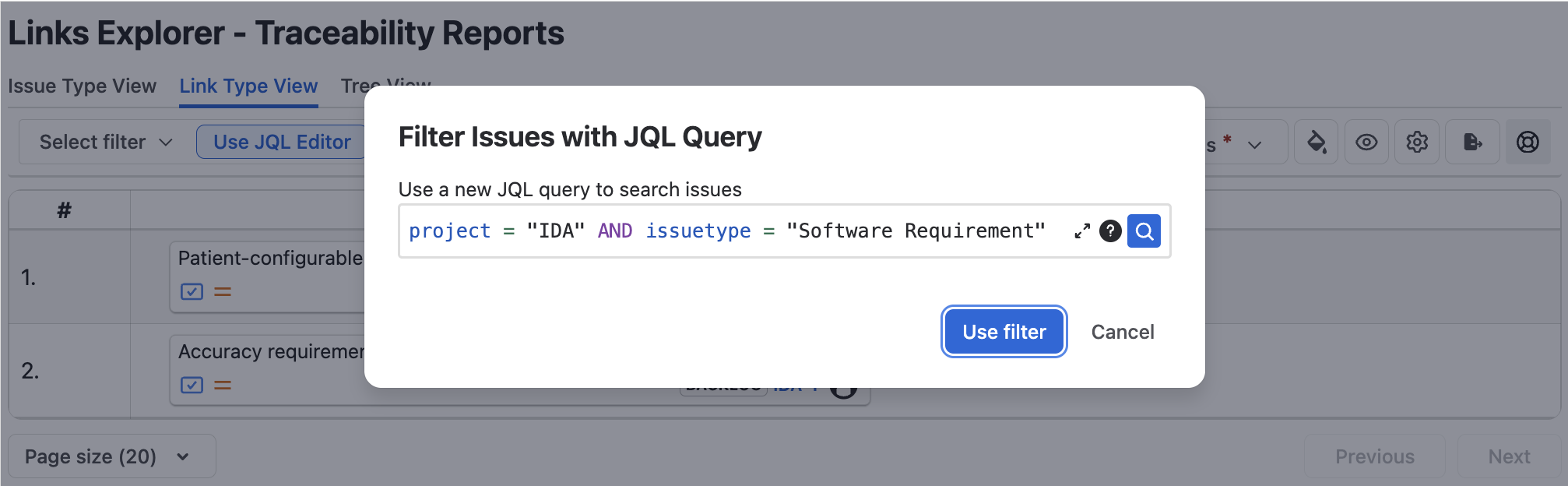
Step 1: Define your scope with JQL
Start with the Jira work items you want to analyze. We've used this exact query since How to Build a Requirements Traceability Matrix in Jira:
project = "IDA" AND issuetype = "Software Requirement"
A focused JQL scope helps you analyze the part of the project relevant to the review, rather than pulling in every work item regardless of type.
Step 2: Choose how far to trace
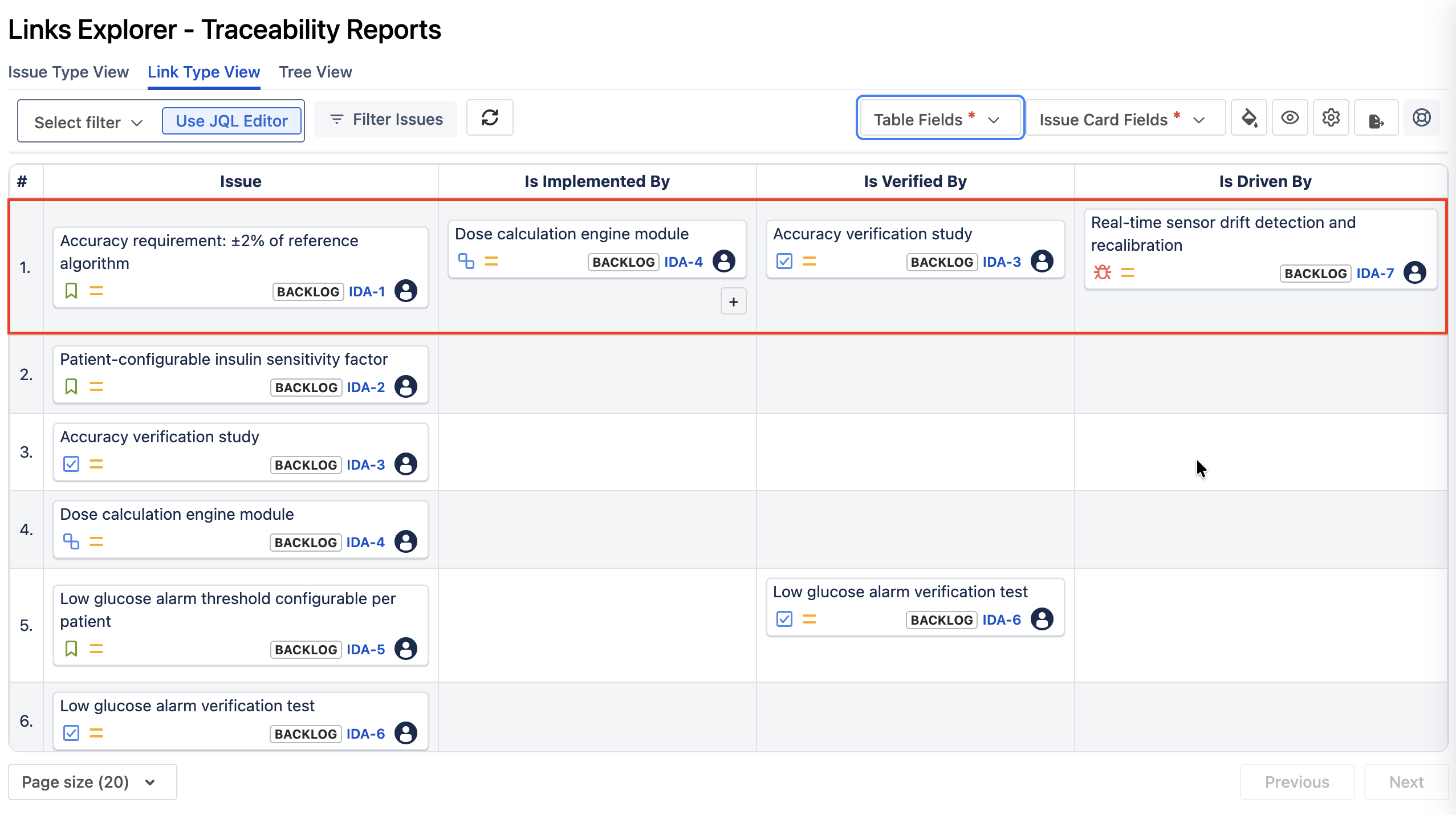
As our RTM-in-Jira guide covered, Links Explorer doesn't ask you to pick a depth up front, you expand each work item's linked issues node by node, going as deep as the question you're investigating needs:
              Level 1: Requirement -> Test

              Level 2: Requirement -> Software Item -> Test

              Level 3: Risk Control -> Requirement -> Software Item -> Test
A verification review may only need one level, IDA-1 expanded to IDA-3. An end-to-end audit review might expand all the way to Level 3, following IDA-7 through IDA-1 to IDA-4 and IDA-3, the same chain introduced in IEC 62304 and ISO 14971: Connecting Risk Controls to Software Requirements in Jira.
Step 3: Generate and inspect the traceability view
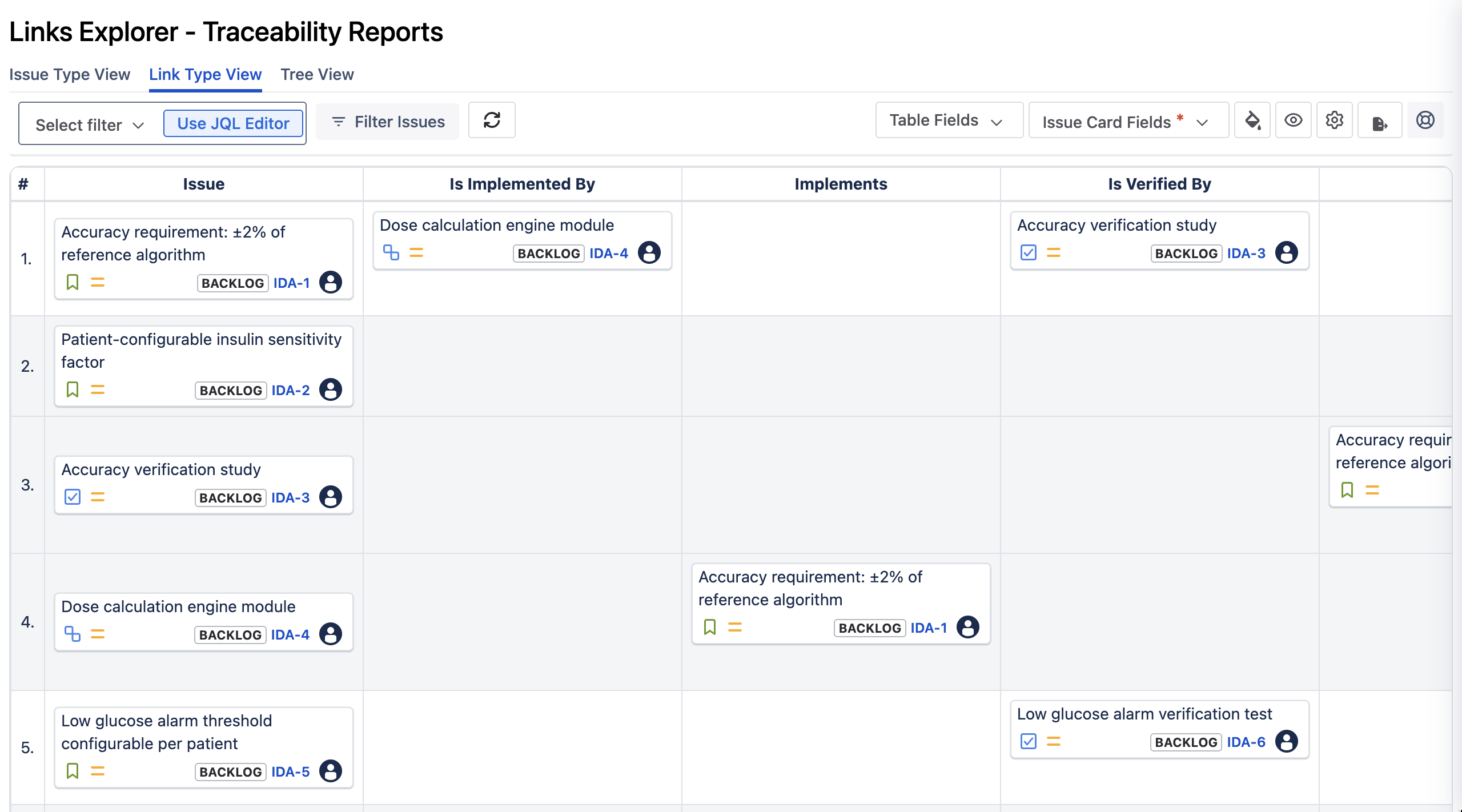
Links Explorer follows the Jira work item relationships in the selected scope. The result lets you inspect upstream and downstream relationships instead of opening work items one by one. Useful questions include:
- Which risk control led to this software requirement?
- Which software item implements it?
- Which test verifies it?
- Are any requirements orphaned?
- Are risk controls connected to the requirements they drive?
- Are related artifacts stored in another Jira project?
Step 4: Demonstrate the three traceability views
| View |
Story to tell |
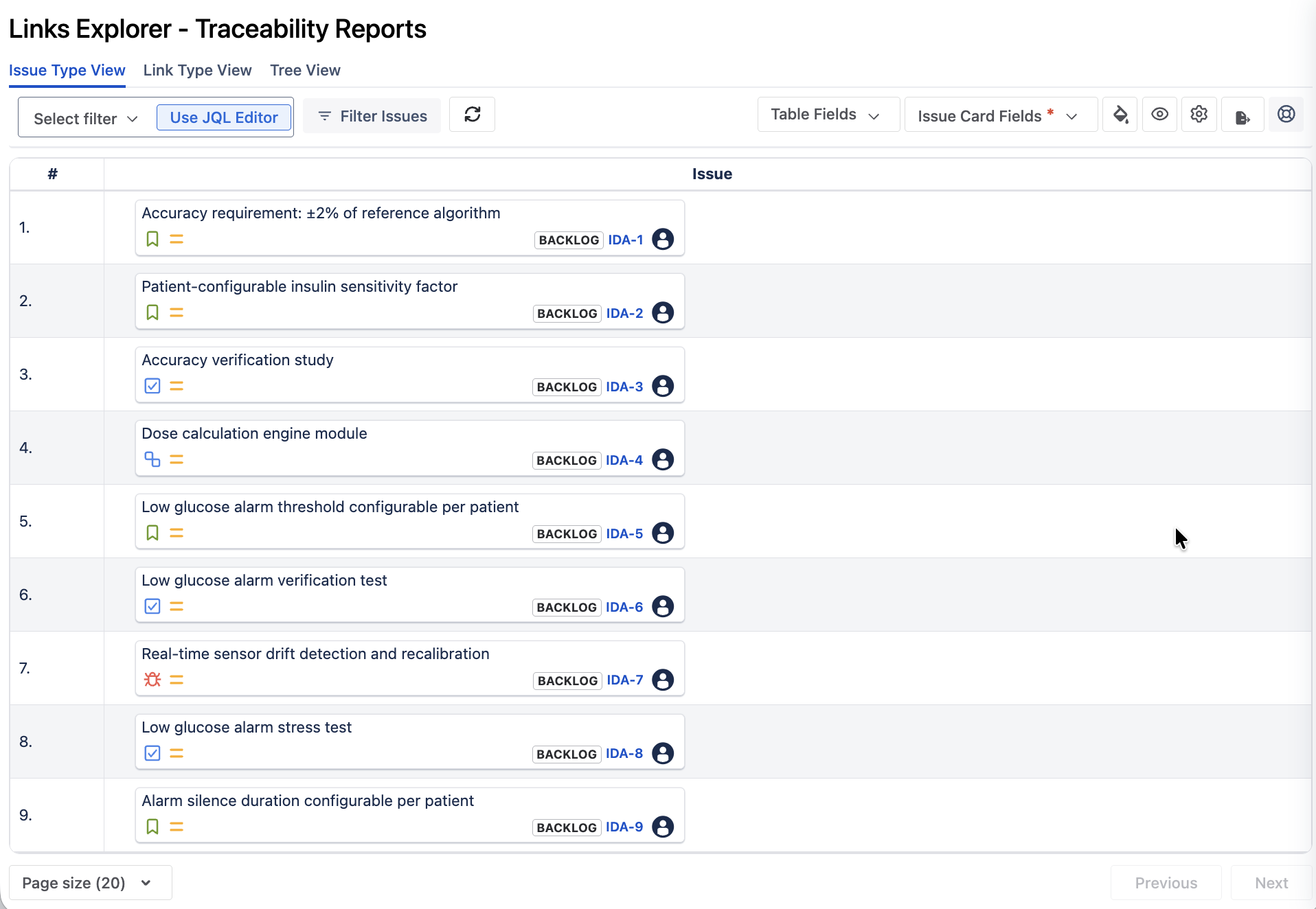
| Issue Type View | See the work items in scope at a glance, with their type, status, and key |
| Link Type View | Understand the meaning and direction of relationships |
| Tree View | Follow an end-to-end chain across multiple levels |
We've already shown two of these three in this series: Link Type View in our RTM-in-Jira guide and Tree View in our audit-gaps article. The one piece missing is Issue Type View, which lists the IDA work items in scope as a simple table, one row per work item, with its summary, type, status, and key. It is a quick way to confirm you have scoped the right work items before you start reading relationships.
Orphan detection: where gaps become visible
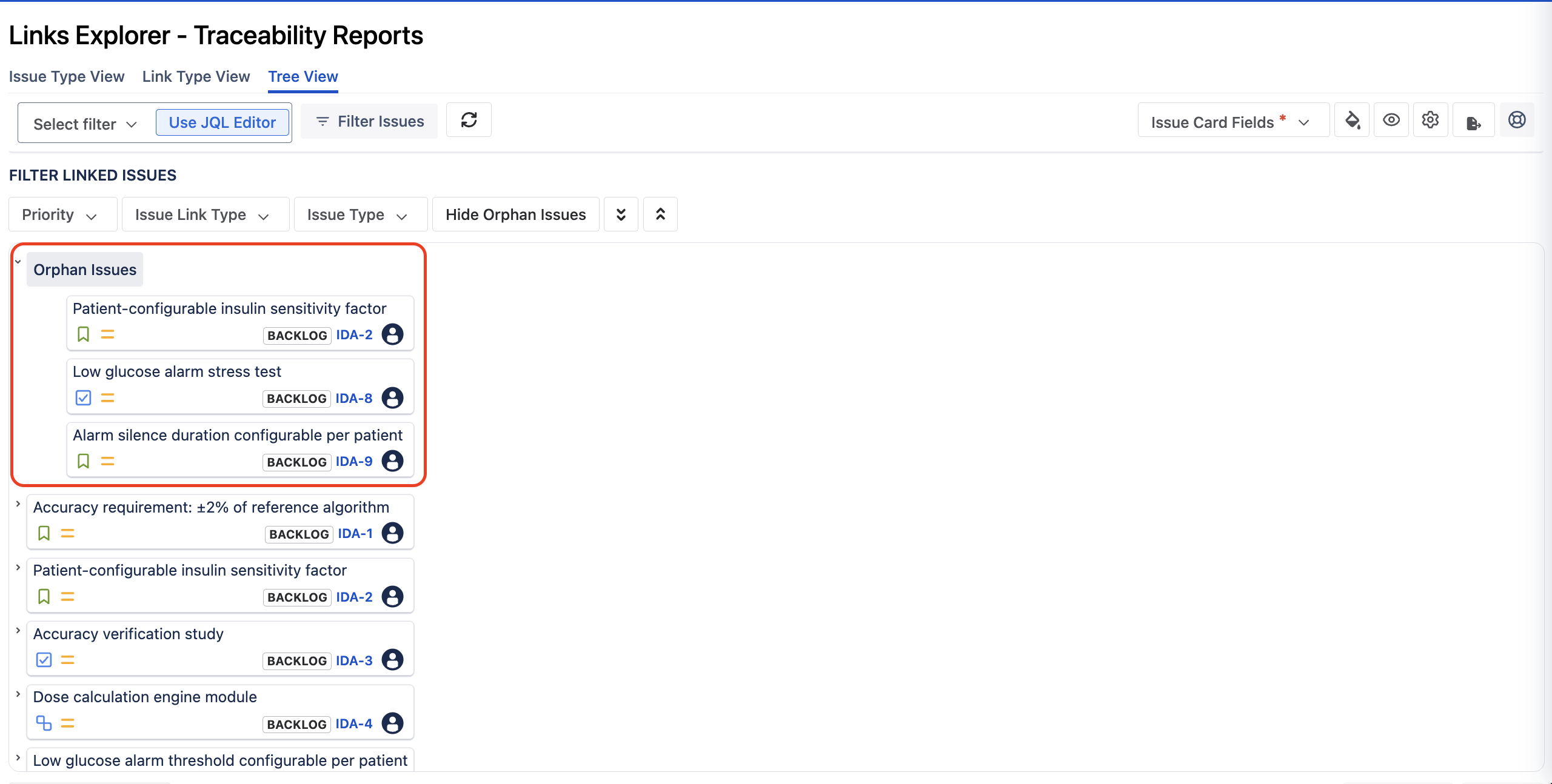
A traceability matrix is valuable because it can show both coverage and missing relationships. Our audit-gaps article already walked through this with the IDA project's own Orphan Issues view, the same screenshot applies here: it's one of the strongest product screenshots in this series, because it connects the educational problem directly to a visible result.
Cross-project traceability
Some teams keep different artifacts in different Jira projects, a verification project separate from a software project, for example. Links Explorer can follow a relationship across that project boundary the same way it follows one within a single project. The IDA project we've used throughout this series lives entirely in one project, so rather than fabricate a second project just to screenshot the feature, we'll leave this one as a capability to be aware of: if your own Jira has this kind of split, a real cross-project link is worth including in your own traceability review.
Export the result
Once the traceability view has been reviewed, it can be exported as part of the organization's documentation and audit workflow. Worth being precise here: an exported matrix is a traceability artifact generated from Jira data, it does not by itself establish regulatory compliance. It's evidence you can point an auditor to, not a substitute for the risk management and verification activities it documents.
Saved views and repeatability
If the same traceability review happens repeatedly, a saved configuration (the JQL scope and the relationship columns you've chosen) can reduce the setup work each time. The bigger outcome isn't the saved click-path though, it's repeatability: the team returns to a known traceability view instead of rebuilding a spreadsheet from scratch, the same spreadsheet-drift problem described in Gap 3 of our audit-gaps article.
Final IEC 62304 Jira checklist
This builds on the audit-readiness checklist in our audit-gaps article with two items at the top that this post adds:
- Issue types map consistently to your development artifacts.
- Link types are explicit and directional, not a generic "relates to".
- Every software requirement has a unique identifier.
- Requirements have upstream sources where applicable.
- Risk controls are connected to the relevant requirements.
- Requirements are connected to verification activities.
- Orphan requirements can be identified.
- Traceability can be followed in both directions.
- Cross-project relationships are handled where necessary.
- The generated RTM reflects the current Jira relationships.
Your Jira already has the data
Medical device teams don't necessarily need to maintain a separate spreadsheet just to understand how their Jira work items are connected. If the requirements, software items, risk controls, and tests are already linked in Jira, the next challenge is visibility, and that's what Links Explorer turns those existing relationships into: traceability views the team can inspect, review, and export.
That's the story this six-part series has told, from why traceability matters, to how to structure Jira for it, to turning those relationships into an RTM, to how risk controls fit in, to where traceability breaks, and finally here: how Links Explorer provides the practical workflow underneath all of it. Traceability isn't an artifact created only before an audit. It's a relationship structure maintained throughout development, and Jira can be the place where that structure lives.
Explore Links Explorer and see what your Jira project already tells you about requirements coverage.